

Mathematics
Yenka Mathematics lets you experiment easily with 3D mathematical models, to learn about statistics, probability, geometry and coordinates.
Statistics
Yenka Mathematics’ probability and statistics tools offer a colourful way to learn about the subject by experimenting and interacting with models.
Create and import data
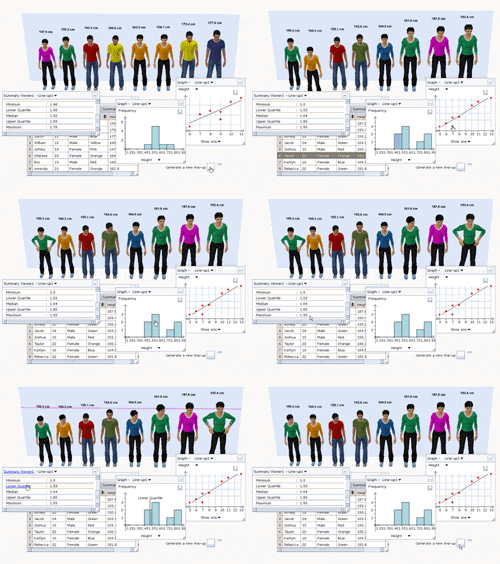
Use the line-up to model your class, seeing the effects of changing characteristics like age, shoe size and height.
Investigate statistical measures
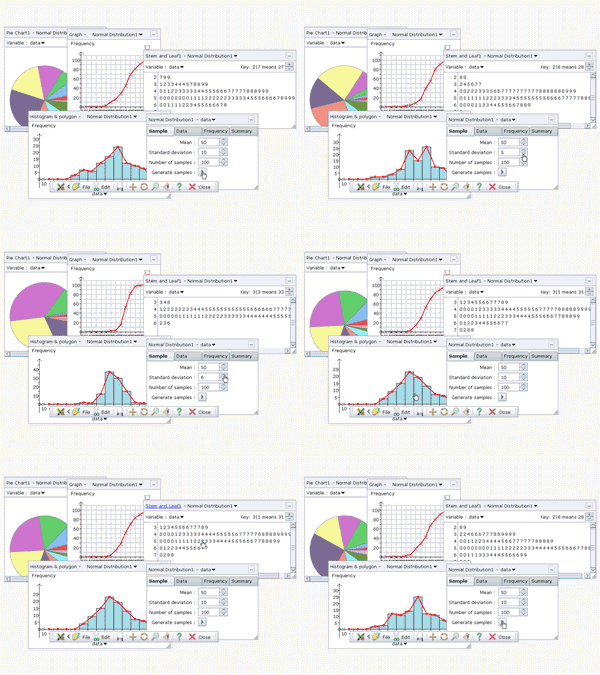
With charts, tables and statistics interlinked, it’s much easier to understand how they are related.
Easy-to-use graphs
Scatter graphs let you check correlations, interpolate or extrapolate, while box plots show the five-number summaries.
Probability games
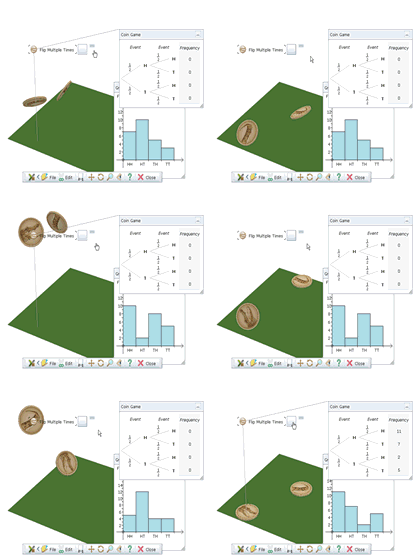
Study multiple events: roll two dice or flip three coins, and follow the tree diagram to see the probability for each combined outcome.
3D Shapes
The 3D Shapes module offers a powerful modelling tool that allows you to modify 2D and 3D shapes or create lessons from scratch.
Experiment with 3D geometry
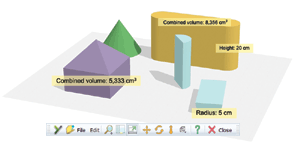
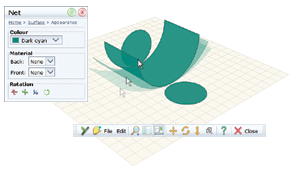
Drag ready-made shapes or nets onto the screen, then resize or rotate them by dragging.
Yenka offers a full library of 3D shapes, ready for you to use.
Complete control over your model
Change the 3D view, or the colours and textures of your shapes. Snap measurements onto them to read lengths, areas and combined volumes.
Design 3D nets, and fold them
Snap shapes like squares and triangles together: joined edges become hinges, and you can fold them by dragging corners.
A range of ready-made nets help you get started, or you can unfold 3D shapes into their nets.
Create your own activities
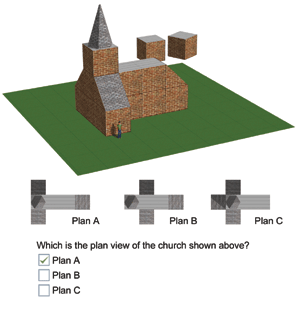
View plans and elevations
Coordinates
Coordinate Games
Either place a point, given its coordinates, or enter the coordinates of points on the screen.
Create your own games
Choose how the axes are set up – 2D or 3D, one quadrant or 4, units and scales, and so on – and add 3D objects, like those from Google’s Sketchup Warehouse.
Work in full 3D
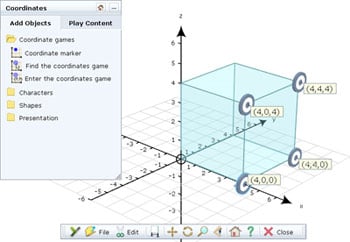
Add a third axis to learn about coordinates in 3D.
Drag a 3D shape onto the screen, and you can attach points to any of its vertices.
Yenka 3D Shapes FAQs
You must first show Yenka how you would like it to fold your net. You can do this by grabbing the corners of your net and folding them into a 3D shape. When you are finished, simply open the net properties and click “store angles”. You can then use the “fold” and “flatten” buttons or the “convert to shape” to make a solid.
The base of your net should be the shape that is darker in colour than the rest. To change this, simply double-click the net to open its properties and click on the “surface appearance” tab. Double-click on the shape you would like and then click the “make base” button.